How to Resize an Image Without Stretching It
You resize a photo to the size a website asked for, and the result looks wrong. Faces are wider than they should be. Circles have turned into ovals. Text looks squashed. The image has been stretched.
This happens for one simple reason, and once you know it, it's easy to avoid. Here's what's going on, how to resize safely, and what to do when you genuinely need a different shape.
Why images get stretched
Every image has an aspect ratio: the relationship between its width and its height. A 1600 × 900 image has a ratio of 16:9. A 1080 × 1080 image is 1:1, a square.
An image keeps its shape only if you scale its width and height by the same amount. Halve both, and it looks the same, just smaller. But if you change the width by one amount and the height by another, everything in the picture is squeezed or pulled in one direction.
That's exactly what happens when you type in a new width and a new height that don't match the original ratio. Ask for a 1600 × 900 photo to become 1080 × 1080, and the width shrinks to about two-thirds while the height grows. Everything gets squashed sideways.
The safe way: change one side and let the other follow
To keep the shape, decide on one dimension and calculate the other from the original ratio:
new height = original height × (new width ÷ original width)
For a 1600 × 900 image that needs to be 1080 pixels wide:
900 × (1080 ÷ 1600) = 607.5, which rounds to 608
So the correct size is 1080 × 608, not 1080 × 1080.
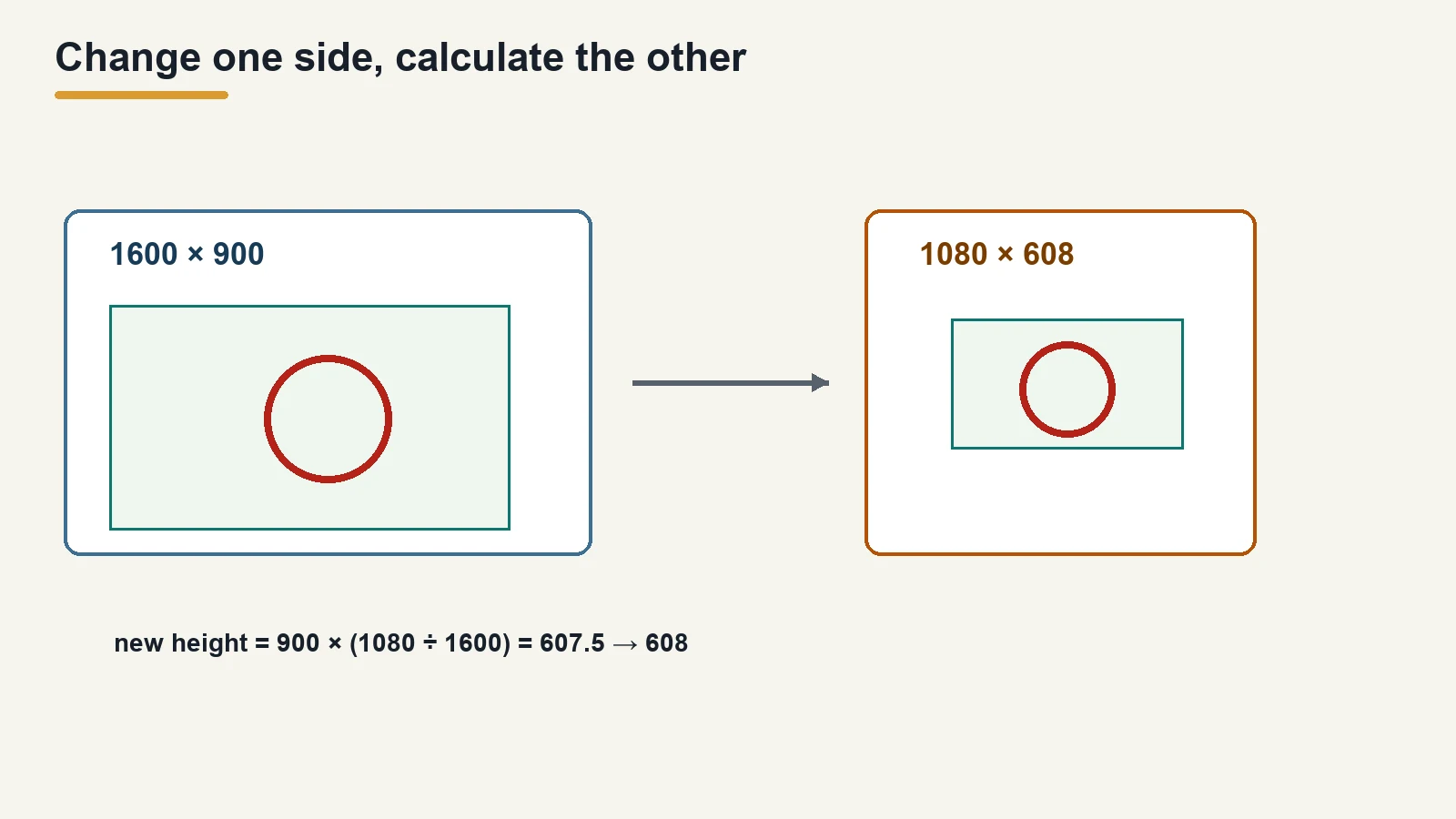
You rarely need to do this by hand. Most resize tools have a mode that does the calculation for you.
The four modes in our resize tool
Our image resizer has four resize methods. We tested each one on the live tool with a 1600 × 900 image on 1 November 2026. Three of them always keep the shape. One doesn't.
| Method | What you enter | 1600 × 900 test result | Keeps the shape? |
|---|---|---|---|
| By Percentage | A percentage, from 5% to 200% | 50% → 800 × 450 | Yes |
| Fixed Width (auto height) | The width you want | 1080 → 1080 × 608 | Yes |
| Fixed Height (auto width) | The height you want | 1080 → 1920 × 1080 | Yes |
| Exact Dimensions | Both width and height | 1080 × 1080 → 1080 × 1080 | Only if your numbers match the original ratio |
By Percentage
Scales both sides by the same amount. It's the simplest way to make an image smaller without thinking about the numbers. The slider goes from 5% to 200%.
Fixed Width or Fixed Height
Enter the one size you care about, and the tool works out the other side from the original ratio. These are the modes to use when a website or platform tells you a width ("images should be 1200 pixels wide") or a height.
Exact Dimensions
Here the tool uses both numbers exactly as you type them, whether or not they match the original shape. There's no ratio lock in this mode. In our test:
- 1600 × 900 → 1200 × 675 came out correctly, because 1200 × 675 is also 16:9.
- 1600 × 900 → 1080 × 1080 came out squashed, because a 16:9 image was forced into a square.
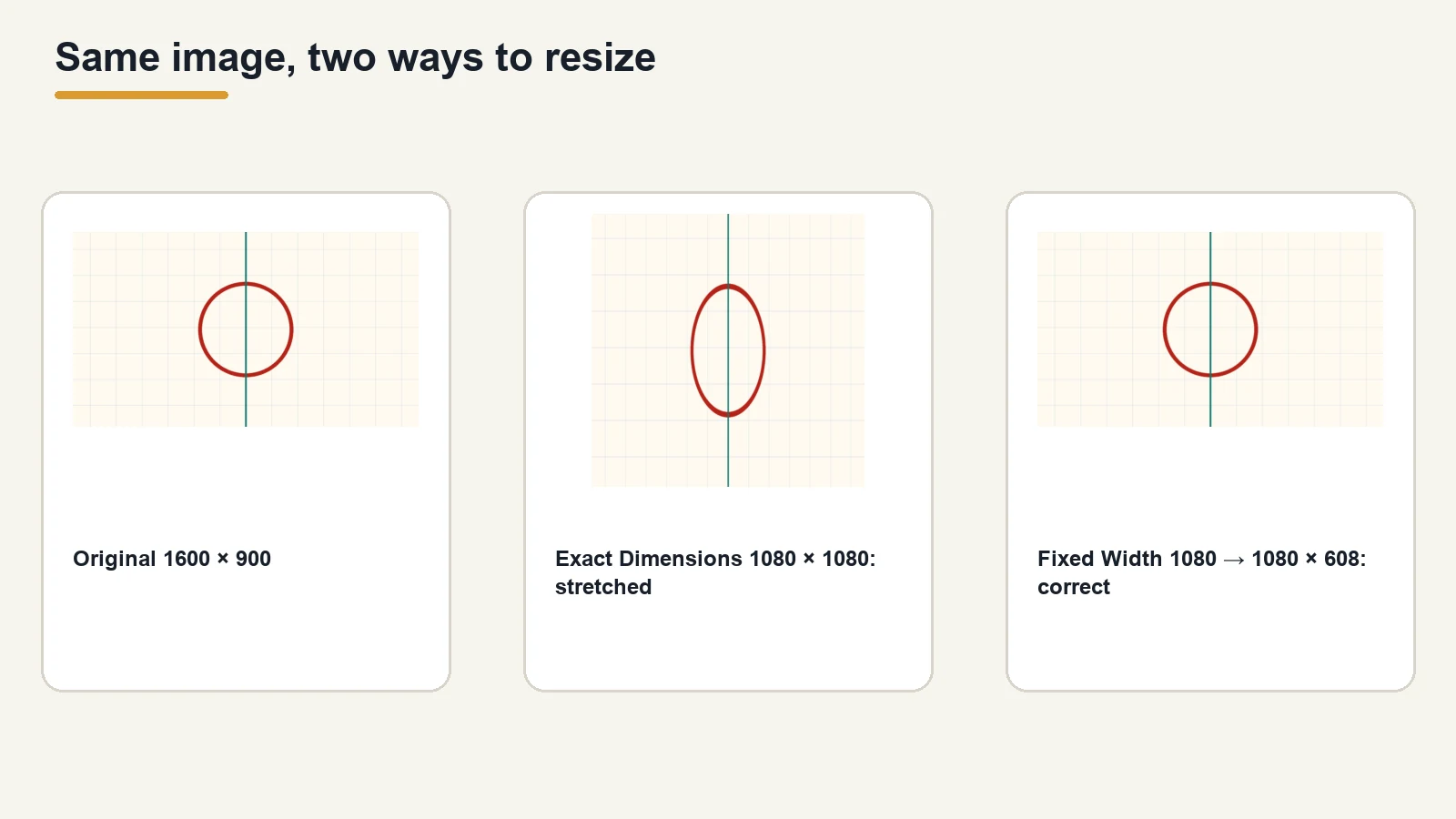
Use Exact Dimensions only when you've already checked that your target has the same ratio as your image. If you aren't sure, use Fixed Width or Fixed Height instead.
What if you need a different shape?
Sometimes you really do need a different ratio, like a square profile picture from a wide photo. Resizing alone can't do that without distortion. There are three ways to handle it, and each one gives something up:
- Crop (fill the frame): cut away part of the image so the rest has the shape you need. Nothing is distorted, but you lose the edges.
- Fit with borders (letterbox): shrink the whole image to fit inside the new shape and fill the empty space with a solid colour or blur. Nothing is lost or distorted, but there are borders.
- Stretch: force the image into the new shape. Nothing is lost, but everything is distorted. This is the one to avoid.
Our resize tool doesn't crop or add borders. It only changes the size. So if you need a square from a wide photo, crop it to a square in a photo editor first, and then resize the cropped image. If you crop to exactly 1:1, you can then use any of our modes, including Exact Dimensions, safely.
For platform-specific sizes, our article on why Instagram photos look blurry after upload covers the shapes Instagram uses.
Two more settings worth knowing
Resampling
The tool offers two resampling methods:
- Bilinear (smooth, default): blends neighbouring pixels. Good for photos.
- Nearest-neighbor (pixel art): copies the nearest pixel. Keeps hard edges sharp, which suits pixel art and some screenshots.
Enlarging
The percentage slider goes up to 200%, and Fixed Width or Height will happily make an image bigger. Enlarging doesn't add detail that wasn't in the original, so a small image scaled up can look soft. Where you can, start from the largest original you have and scale down.
Quick checklist
- Know your original size. The tool shows it in the results (for example "1600×900 → 1080×608").
- Pick one side. Use Fixed Width or Fixed Height, or a percentage.
- Only use Exact Dimensions when the target ratio matches your image.
- Need a new shape? Crop first, then resize.
- Check the result before you upload it, and compress it with our image compressor if the file is still large.
FAQ
Why does my image look stretched after resizing?
Its width and height were changed by different amounts, so its aspect ratio changed. This usually happens when you set both a new width and a new height that don't match the original shape.
How do I resize an image without changing the aspect ratio?
Change only one side and let the other follow. In our resize tool, use By Percentage, Fixed Width or Fixed Height. All three keep the original shape.
How do I resize to an exact size without distortion?
Make sure the exact size has the same ratio as your image. If it doesn't, crop the image to the target ratio first, then resize it.
Does the forgepx resizer have an aspect ratio lock?
There's no separate lock switch. Three of its four modes (Percentage, Fixed Width, Fixed Height) always keep the ratio. Exact Dimensions uses both numbers as you type them.
Can the resize tool crop my image to a square?
No. It only changes the size. Crop to a square in a photo editor first, then resize.
Sources
| Source | URL | Checked |
|---|---|---|
| ForgePX Image Resizer, live tool test (four modes, 1600 × 900 test image) | https://forgepx.com/pages/resize | 20261101 |
| ForgePX resize script (resize methods, percentage range, resampling options) | https://forgepx.com/js/resize.js | 20261101 |