Instagram Image Sizes: Why Your Photos Look Blurry After Upload
You export a sharp photo, post it to Instagram, and it comes back softer than the file on your phone. Or the top and bottom get chopped off. Most of the time the cause isn't a mystery: Instagram resizes and crops photos to fit a short list of rules, and it publishes those rules in its own Help Center.
This guide goes through those rules using Instagram's wording, works out the exact pixel sizes, and shows how to prepare a photo so Instagram has as little to change as possible.
The official rules, in plain numbers
Instagram's Help Center page "Image resolution of photos you share on Instagram" says it uploads photos "at the best quality resolution possible (up to a width of 1080 pixels)." Then it sets out three rules.
1. Width. Photos between 320 and 1080 pixels wide are kept "at its original resolution", as long as the aspect ratio is supported. Anything else gets resized:
- "If you share a photo at a lower resolution, we enlarge it to a width of 320 pixels."
- "If you share a photo at a higher resolution, we size it down to a width of 1080 pixels."
2. Aspect ratio. The supported range is "between 1.91:1 and 3:4 (a width of 1080 pixels with a height between 566 and 1440 pixels)."
3. Cropping. "If the aspect ratio of your photo isn't supported, it will be cropped to fit a supported ratio."
A note if you've read older guides: many still say the tallest feed photo is 4:5 (1080 × 1350). Instagram's page now says 3:4, which allows 1080 × 1440. We checked it on 28 October 2026.
What that means in pixels
At the maximum width of 1080 px, the supported shapes work out like this:
| Shape | Ratio | Size at 1080 px wide |
|---|---|---|
| Landscape (widest allowed) | 1.91:1 | 1080 × 566 |
| Square | 1:1 | 1080 × 1080 |
| Portrait | 4:5 | 1080 × 1350 |
| Portrait (tallest allowed) | 3:4 | 1080 × 1440 |
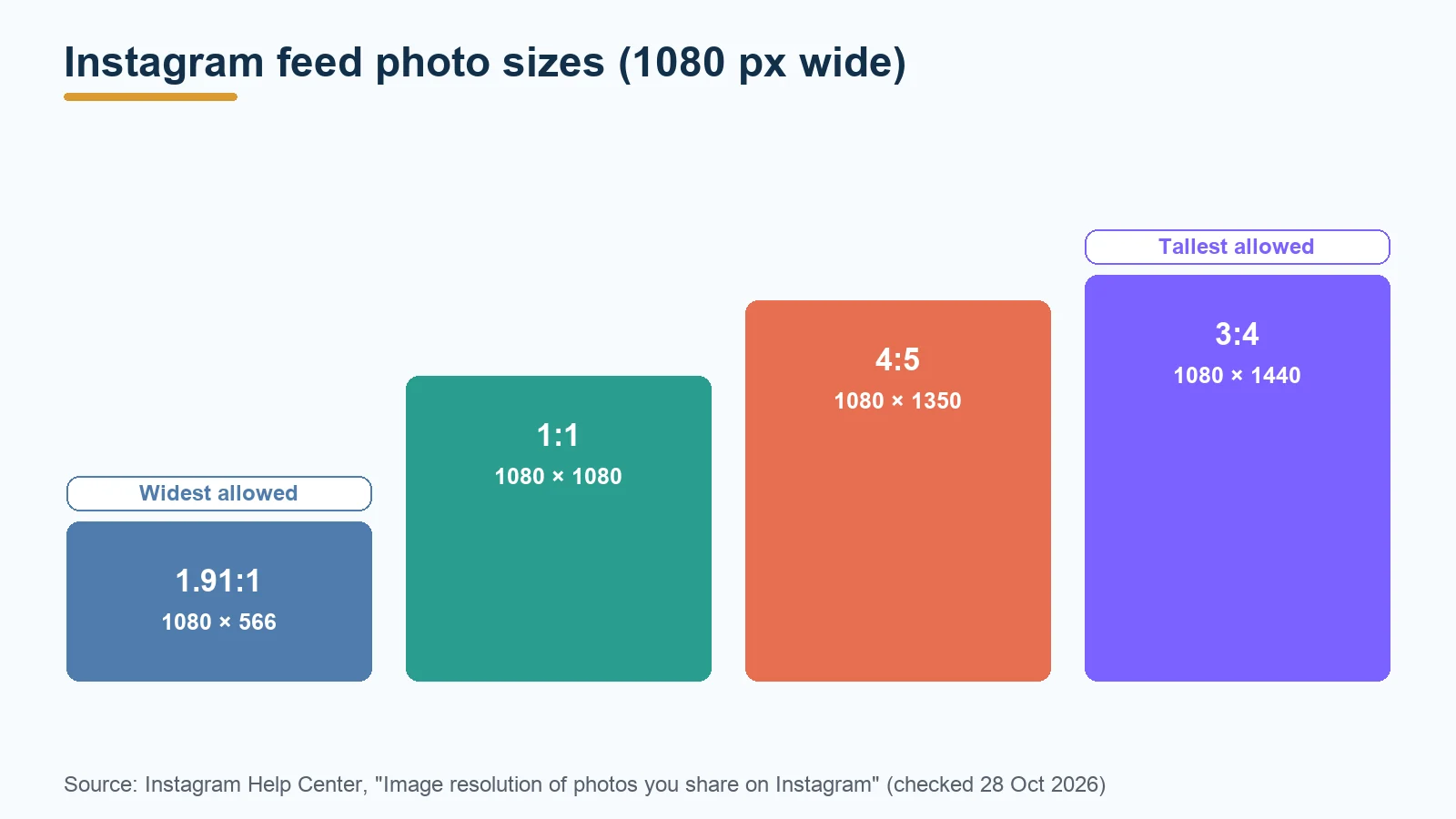
Anything wider than 1.91:1 (a 16:9 photo, for example) or taller than 3:4 (a 9:16 phone screenshot, say) is outside the range, so Instagram crops it.
Why your photo looks blurry: the usual causes
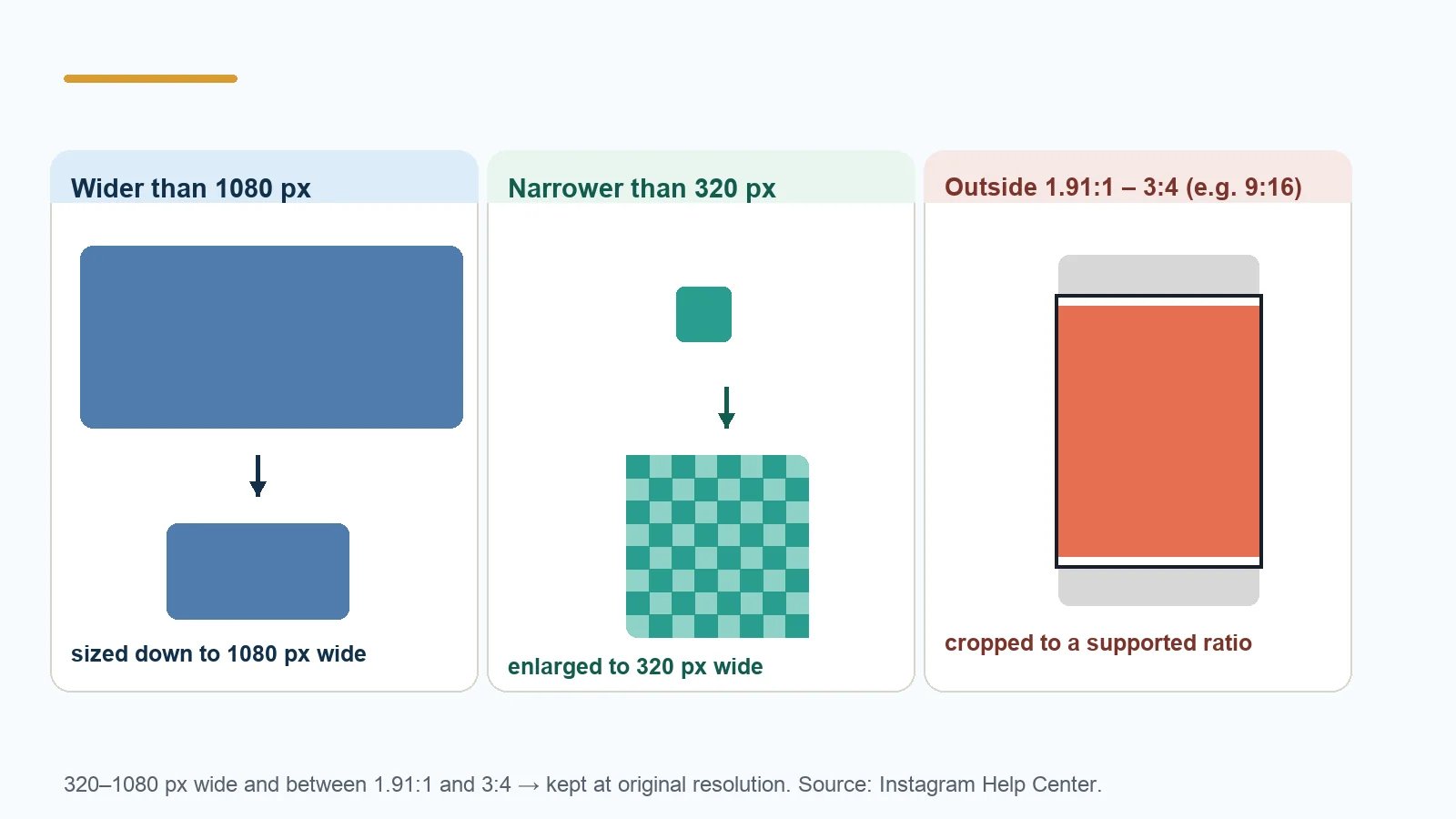
It was resized down to 1080 px
A modern phone photo is often several thousand pixels wide. Instagram stores it at 1080 px wide, so most of those pixels are thrown away. Fine detail such as text in the background, distant foliage or fabric texture can soften when that happens.
That isn't a fault you can switch off. It's how the platform works. What you can control is who does the resizing. If you resize to 1080 px yourself, you get to choose the method and check the result before posting, instead of seeing it for the first time on your feed.
It was enlarged
The less common case: a photo narrower than 320 px is enlarged to 320 px wide. Enlarging can't add detail that isn't there, so the result looks soft. This tends to happen with small images saved from websites or messaging apps. Start from the original file instead.
It was cropped, then you zoomed in
If your photo is outside 1.91:1 to 3:4, Instagram crops it. Cropping by itself doesn't blur anything, but people often pinch-zoom to frame the shot inside the crop box, which leaves fewer pixels covering the frame. Crop to the right shape before you upload, and you decide what stays in.
It had already been compressed several times
Every time a JPEG is re-saved, it loses a little more detail. A photo that has been sent through a chat app, saved, edited and saved again may already be soft before Instagram does anything to it.
Instagram's Help Center page doesn't say how Instagram itself compresses photos, so we won't guess at its settings. Whatever it does, it has to save a new file whenever it resizes or crops your photo. The cleaner the file you give it, the better.
The camera itself
Instagram's own advice includes this line: "Make sure you're using a phone with a high-quality camera as different phones have cameras of varying qualities." If the original is soft or noisy, no export size will fix it.
How to prepare a photo for Instagram
Here's a workflow that keeps Instagram's changes to a minimum.
Step 1: Pick your shape and crop to it
Decide on square (1:1), portrait (4:5 or 3:4) or landscape (up to 1.91:1). Crop in your phone's photo editor or your desktop editor so the photo is already that shape. At the same 1080 px width, a 3:4 or 4:5 photo is taller than a square one, so it fills more of the screen.
Step 2: Resize to 1080 px wide
Open the ForgePX image resizer:
- Drop in your cropped photo (PNG, JPEG, WebP and BMP are accepted).
- Choose Fixed Width (auto height) and enter 1080. The height follows your crop, so a 4:5 crop comes out at 1080 × 1350.
- Leave Resampling on Bilinear, which the tool describes as suited to photos. Nearest-neighbor is meant for pixel art and screenshots.
- Pick an output format. JPEG is the usual choice for photos.
- Click Resize All Images and download.
Avoid Exact Dimensions with the aspect ratio unlocked: the tool's own guide says the image then "stretches to fit", so faces and circles get distorted. Crop first, then use Fixed Width.
The resizer can batch-resize several images at once, which is handy for a carousel.
Step 3: Don't over-compress
If the file is large, you can shrink it with the ForgePX image compressor. Go easy, though: the photo is going to be processed again by Instagram, so keep quality high (the tool defaults to 80%) rather than squeezing it to the minimum. Re-encoding also removes the original metadata, such as EXIF and location tags, which the compressor page points out.
Not sure whether to save as JPEG, PNG or WebP? Our image formats guide compares them.
Step 4: Check before you post
Open the exported file at 100% on your computer or phone. If it looks soft there, it will look soft on Instagram too, so go back to the original instead of trying to sharpen the export.
FAQ
What is the best image size for an Instagram post?
1080 px wide at a supported ratio: 1080 × 1080 (square), 1080 × 1350 (4:5), 1080 × 1440 (3:4, the tallest Instagram now lists) or 1080 × 566 (1.91:1 landscape).
Is the tallest Instagram portrait 4:5 or 3:4?
Instagram's Help Center page now gives the range as 1.91:1 to 3:4, with heights up to 1440 px at 1080 px wide. Many older guides still say 4:5.
Should I upload larger than 1080 px for better quality?
Instagram says photos wider than 1080 px are sized down to 1080 px. Uploading larger doesn't keep the extra pixels; it just means Instagram does the resizing instead of you.
Why does Instagram crop my photo?
Because its aspect ratio is outside 1.91:1 to 3:4. Instagram crops unsupported ratios to fit a supported one. Crop it yourself first to choose what stays in the frame.
Does Instagram compress photos?
Its Help Center page on image resolution covers resizing and cropping but doesn't describe its compression settings. Starting from a clean, high-quality 1080 px file is what you can control.
Sources
| Source | URL | Checked |
|---|---|---|
| Instagram Help Center, "Image resolution of photos you share on Instagram" | https://help.instagram.com/1631821640426723 | 20261028 |
| ForgePX Image Resizer (tool options and guide text) | https://forgepx.com/pages/resize | 20261028 |
| ForgePX Image Compressor (tool options) | https://forgepx.com/pages/compress | 20261028 |