Why Transparent PNGs Turn White (or Black) After Converting
You cut a logo or a product out of its background, save it as a PNG, and it looks perfect. Then you convert it to JPG to make the file smaller, and the see-through area is suddenly solid white. Or solid black. Or the shape now has a dark outline it didn't have before.
Nothing is broken. The format you converted to simply has nowhere to store transparency, so something has to fill the gap. This guide explains what fills it, why some tools pick white and others pick black, and which formats to use when you need the background to stay transparent.
The short answer: JPEG has no transparency
Every pixel in an image has colour values (red, green and blue). Formats that support transparency add a fourth value, the alpha channel, which says how opaque that pixel is: fully visible, fully see-through, or anything in between.
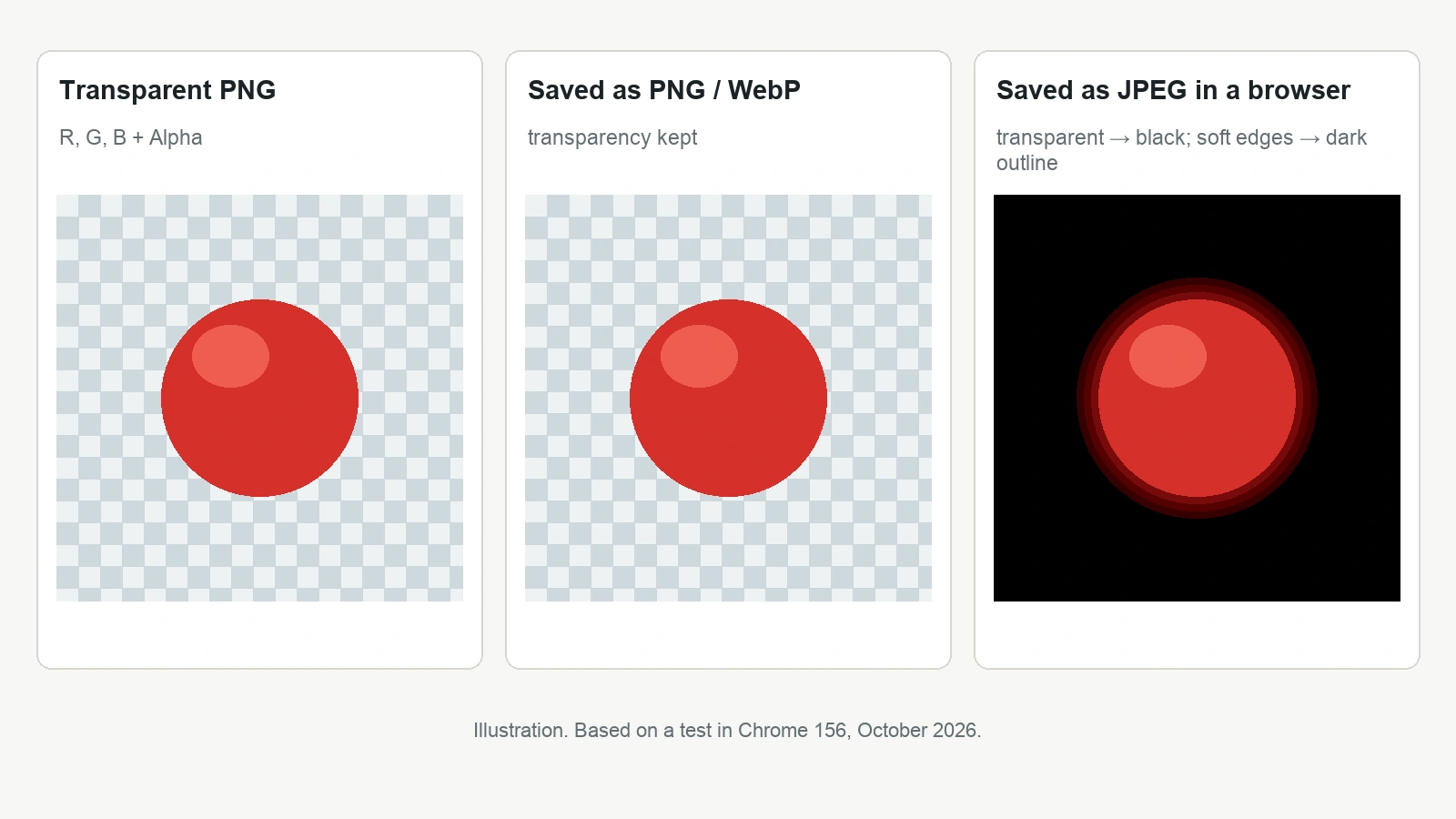
PNG has it. MDN's image format guide describes PNG as "featuring full alpha transparency support". JPEG doesn't. In MDN's words, "JPEG does not support an alpha channel", and the same guide sums up the practical consequence: "PNG is also the fallback for any image needing transparency, as JPEG has no alpha channel."
So when a transparent PNG becomes a JPG, the converter has to replace every transparent pixel with a solid colour. The only question is which colour, and that depends on the tool.
Why some tools give you white
Image editors usually work with layers. Before exporting to a format without transparency, the layers get flattened into one solid image, and whatever sits "behind" the transparent areas shows through.
GIMP's manual is a good example of how this works. Its Flatten Image command "merges all of the layers of the image into a single layer with no alpha channel", and "if there are any areas which are transparent through all of the layers of the original image, the background color is visible." GIMP's default background colour is white (its toolbox reset button "resets the foreground and background colors to black and white"), so in a default setup, flattening fills transparent areas with white.
That's where the white comes from: not from the PNG, but from the editor's background colour.
Why browser-based converters often give you black
Many online converters, including ours, process the image in your browser using the HTML canvas. The HTML standard spells out what a browser must do when it saves canvas content in a format that can't store transparency: "For image types that do not support an alpha component, the serialized image must be the bitmap image composited onto an opaque black background."
In other words, black is the rule, not a bug. If an online tool converts PNG to JPG and doesn't deliberately paint a background first, transparent areas come out black.
We checked this with our own converter's export process in Chrome 156 (October 2026), using a small test image with four blocks: fully transparent, solid red, 50% transparent red, and fully transparent again.
| Output format | Fully transparent area | 50% transparent red |
|---|---|---|
| PNG | Stays transparent | Stays 50% transparent |
| WebP | Stays transparent | Stays 50% transparent |
| JPEG | Black | Dark red (blended with black) |
| BMP (our encoder) | Black in this test (alpha dropped, not filled) | Solid red (transparency dropped) |
We haven't tested Safari or Firefox, so treat this as how our tools behave in Chrome.
Soft edges: where the dark outline comes from
The JPEG row in that table explains a problem people often notice only after the conversion: a thin dark halo around a cutout.
Good cutouts don't have hard edges. Hair, fur, shadows and anti-aliased edges are made of partly transparent pixels, and our background remover's Smooth edges (feather) option creates exactly those on purpose. When the image is saved as JPEG, each of those edge pixels is blended with the fill colour. Over black, a 50% red pixel became dark red in our test; along an edge, that shows up as a dark outline. If the fill had been white, the same edges would be blended with white instead.
The fix isn't to sharpen the edges. It's to keep the image in a format that stores those partial values.
Which formats keep transparency
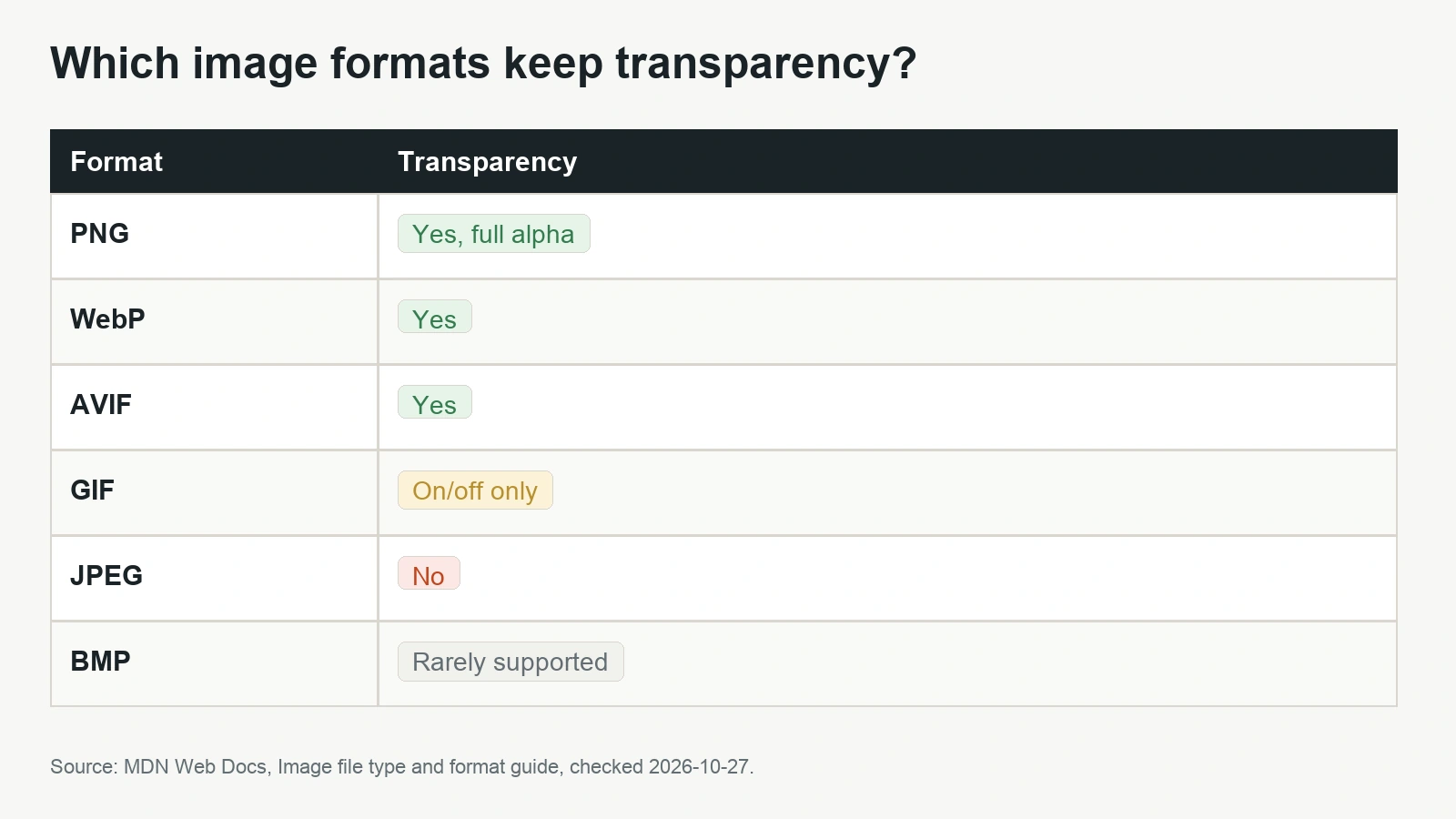
According to MDN's image format guide:
| Format | Transparency | Notes |
|---|---|---|
| PNG | Yes, full alpha | Lossless; the safe default for logos, icons and cutouts |
| WebP | Yes | MDN lists transparency among its features, with better compression than PNG or JPEG |
| AVIF | Yes | Also supports transparency; MDN advises fallbacks because browser support is narrower |
| GIF | On/off only | One palette colour can be marked fully transparent; no partial transparency |
| JPEG | No | No alpha channel at all |
| BMP | Rarely | The format can store alpha, but MDN notes such variants are "not widely used and often completely unimplemented" |
For most uses the choice comes down to PNG when you want maximum compatibility and lossless quality, and WebP when you want a smaller file for a website. GIF's on/off transparency is why GIF cutouts often look jagged: each pixel can only be fully visible or fully invisible.
If you want a deeper comparison of these formats for everyday images, see our image formats guide.
How to keep a transparent background with ForgePX
All four of our tools run in your browser, and none of them adds a background colour for you. That's useful here: if you pick a format that supports transparency, the transparency is kept.
1. Make the cutout
Use the background remover. It saves a transparent PNG. Use the brushes to clean up anything the automatic pass missed; our background removal tips cover the edges that usually give trouble.
2. Convert to PNG or WebP, not JPEG
If you need a different format, the format converter can save PNG, JPEG, WebP or BMP. For a transparent image, choose PNG or WebP. JPEG is composited onto black when the browser writes the canvas image. Our BMP encoder instead writes a 24-bit RGB file and drops the alpha channel. In our Chrome test, the transparent blocks came out black, but BMP has no transparency either way.
3. Compress without losing the background
The image compressor can output JPEG, WebP or PNG. For a cutout, choose WebP or PNG. The JPEG option is the smallest, but it will fill the background with black for the same reason.
4. Resize in a transparent format
The image resizer exports PNG, JPEG or WebP. Again, pick PNG or WebP to keep the background.
Our tools don't export AVIF, so if you need AVIF, you'll need another tool for that step.
When you actually want a white background
Sometimes a solid background is the goal, for example when a website or marketplace asks for a JPEG on white. In that case, don't rely on the converter to choose the colour for you. Put the cutout on a white layer in an image editor first, then flatten and export. In GIMP, that means making sure the background colour is white before you use Image → Flatten Image, so the transparent areas become white rather than any other colour.
Do it this way round and the soft edges blend with white instead of black, which is usually what you want on a white page.
Quick fixes
- Background turned white after converting: the tool flattened the image onto a white background. Convert to PNG or WebP instead of JPG.
- Background turned black after converting to JPG: the browser composited the image onto black, as the HTML standard requires for formats without transparency. Save as PNG or WebP instead.
- Transparency gone after converting to BMP: our BMP encoder writes plain RGB and drops the alpha channel, so the colours left in the transparent areas may not be what you expect. Save as PNG or WebP instead.
- Dark outline around the cutout: partly transparent edge pixels were blended with black. Keep the image as PNG or WebP, or flatten onto the colour of the page it will sit on.
- Jagged edges after saving as GIF: GIF only has on/off transparency. Use PNG or WebP.
FAQ
Why did my PNG turn black when I converted it to JPG?
JPEG has no alpha channel, so transparent pixels must be replaced with a solid colour. Browser-based converters follow the HTML standard, which composites the image onto an opaque black background for formats without transparency.
Why did my PNG turn white instead?
The tool flattened the image onto its background colour, and that colour was white. In GIMP, for example, transparent areas take the background colour when the image is flattened, and the default background colour is white.
Can a JPG have a transparent background?
No. MDN states that JPEG does not support an alpha channel. Use PNG or WebP for a transparent background.
Is WebP a good choice for transparent images?
Yes. MDN lists transparency among WebP's features and describes it as offering much better compression than PNG or JPEG. PNG remains the safe choice when you need the widest compatibility.
Sources
| Source | URL | Checked |
|---|---|---|
| MDN Web Docs, "Image file type and format guide" | https://developer.mozilla.org/en-US/docs/Web/Media/Guides/Formats/Image_types | 20261027 |
| WHATWG HTML Living Standard, 4.12.5.5 "Serializing bitmaps to a file" | https://html.spec.whatwg.org/multipage/canvas.html | 20261027 |
| GIMP 3.2 User Manual, "Flatten Image" | https://docs.gimp.org/3.2/en/gimp-image-flatten.html | 20261027 |
| GIMP 3.2 User Manual, "Tools" (default foreground/background colours) | https://docs.gimp.org/3.2/en/gimp-tools.html | 20261027 |